Turn a Webinar Recording Into a Blog Post
Upload the recording of a webinar, or import it from YouTube, and Recast writes a blog draft with an outline from the transcript. The draft covers what the speakers said. It cannot see your slides, so this page also shows what to add by hand, a recap post structure you can copy, and the cost: a 60-minute webinar uses 60 credits, which is what the Free Trial includes.
60 free credits, one time • 1 credit = 1 upload minute • Blog drafts on every plan
A webinar recap post structure you can copy
Six parts, in order. It works with or without Recast. Each card says where a transcript draft gives you a start and where a person has to add the material.
1. Title and short answer
Title the post for the search a reader would type, not "Webinar recap". Open with the question the webinar answered and the answer in two or three sentences. The draft's outline and the summary are raw material here. Write the opening yourself.
[Title: the question your reader would search]
[The short answer, in 2 to 3 sentences]
[Who spoke: name, role, company]
[Date of the webinar]
2. Three to five main points
One heading per point, written as a claim and not as a topic. A transcript draft does most of its work here, because these sections are what the speakers said. Cut the points that only made sense live.
H2: [The point, written as a claim]
[What the speaker argued, in your words]
[One quote, checked against the transcript]
[One example or number from the session]
3. What was on the slides
No transcript holds this part. Put the chart, the table or the demo step next to the point it supports, and type the numbers out so they can be read and searched.
[Chart or table from the deck, with its source]
[Screenshot of the demo step, with a caption]
[Numbers typed out and checked against the deck]
4. Questions from the audience
Give the Q&A its own heading. Keep the attendee's wording for each question and the speaker's wording for each answer. Add the questions that went unanswered in the session, with a written reply.
H2: Questions from the audience
Q: [The question, in the attendee's words]
A: [2 to 4 sentences, in the speaker's words]
Q: [A question there was no time for]
A: [Your written answer]
5. The replay
If the replay is public, embed it and list the timestamps so a reader can jump to a section. If it is gated, link to the registration form and say what the recording adds that the post does not.
[Embedded replay, or a link to the registration form]
00:00 [Section title]
00:00 [Section title]
[One short clip from the session]
6. Your take and one next step
Say what you think the reader should do with this, then give one call to action: the replay, the next webinar or a demo. Add the links the speakers mentioned.
[Your point of view: what to do with this]
[Links: the deck, sources the speakers cited, product pages]
[One call to action]
An illustrative structure, not Recast output. Replace each line in [brackets] with material from your own webinar.
How to turn a webinar into a blog post with Recast
Five steps. Recast does the transcript and the draft. The editing and the publishing are yours.
1. Upload the recording or import it from YouTube
Download the recording file from your webinar platform and upload it to Recast, or paste the YouTube link if the webinar is on YouTube. A replay that sits behind a registration form can stay there, because you upload the file yourself. Each upload minute uses 1 credit, so a 60-minute webinar uses 60. If you also want clips from the same recording, the webinar repurposing page covers the whole job.

2. Read the transcript before you write from it
Recast transcribes the recording, in 20+ languages, with speaker labels and timestamps. The draft is written from this text, so check speaker names, product terms and numbers in the parts you plan to quote. The transcript generator page describes the transcript on its own.
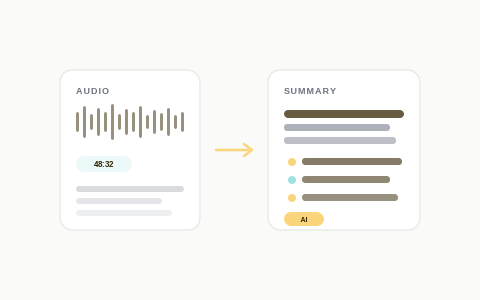
3. Generate the blog draft
Generate a blog draft with an outline from the transcript. It is included on every plan, and on Starter and Professional you can also write a custom prompt. From the same upload, a summary with key takeaways gives you material for the opening, and a recap with timestamps gives you the timestamp list for the replay section. This is the feature described on the podcast to blog converter page, used on a webinar.
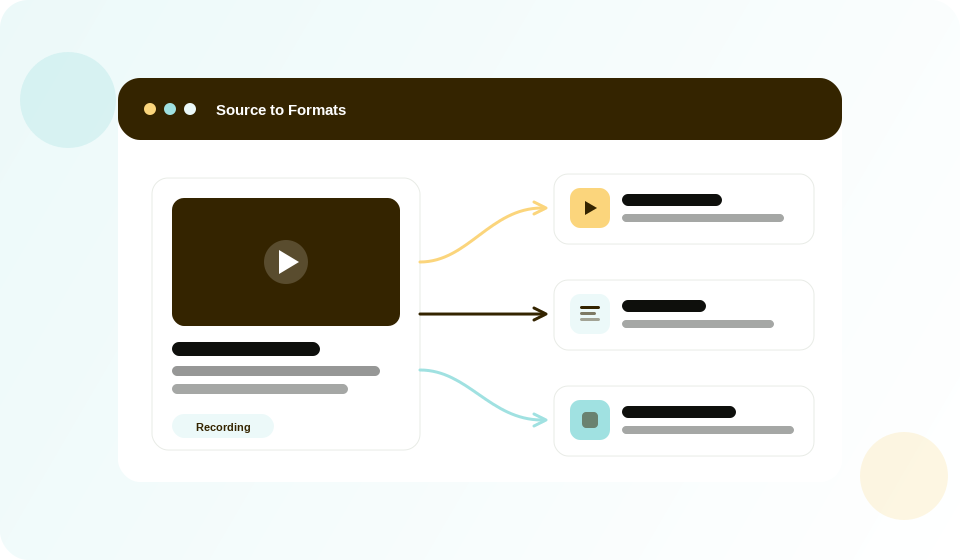
4. Edit, and add what the transcript cannot see
The draft holds what was said. Add what was shown, and what you think:
- Slide content and data from the deck
- Screenshots of the demo or screen share
- A heading for the audience Q&A
- Speaker names, roles and companies
- Links, and your own point of view
Then check every number and quote against the transcript.
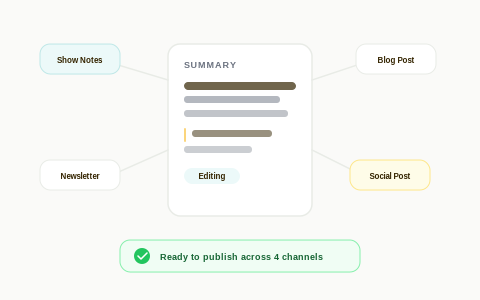
5. Publish it and point it at the replay
Copy the edited post into your CMS. Embed the replay if it is public, or link to the registration form if it is gated, and end with one call to action. Direct publishing in Recast sends clips to six social networks on the Professional plan, and the pricing page lists no blog or CMS publishing. For where the post sits in the two weeks after the event, see the webinar repurposing guide.
The transcript hears the speakers. It cannot see the slides.
A podcast is all talk, so its transcript holds nearly everything. A webinar is different. The chart, the number on the slide and the steps of the demo were shown, not said, and a presenter who says "as you can see here" leaves a gap in the text.
A Draft Written From What Was Said
Recast writes the blog draft from the transcript of your recording. Anything that appeared only on a slide or in a screen share is not in the draft, so keep the deck open while you edit and add its data, charts and screenshots by hand.
Give the Q&A its own heading, and check who said what
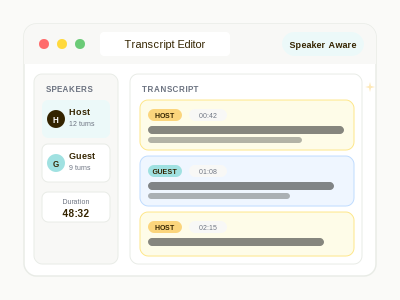
The Q&A is where your audience asks in their own words, and Livestorm's 2026 webinar benchmark report counts an average of 20.4 questions per session. In a recap post those questions belong under their own heading, not scattered through the main points. With a host, panelists and attendees all speaking, attribution is the first thing to check.
Speaker-Labeled Transcript With Timestamps
Use the speaker labels and timestamps to find each question and its answer, confirm which speaker gave it, and take the quote in their words. Do not assume the draft separates the Q&A for you. Read that part of the transcript and build the section yourself if it is missing.
A recap post also has to send people to the replay
A webinar recap usually has a second job: replay views, sign-ups for the next session and something sales can send afterwards. Whether the replay is gated changes the post. In Livestorm's platform data, public replays averaged 14.60 on-demand views against 3.97 for replays limited to registered users. If yours is public, embed it with timestamps. If it is gated, the post is the public version, so give it enough substance to be worth reading and link to the form.
Clips and a Timestamped Recap From the Same Upload
The upload that produces the blog draft also produces clip drafts and a recap with timestamps, so the post can carry a short clip and a timestamp list. Exported clips count toward your plan's video export minutes, and videos exported on the Free Trial carry a watermark.
I've been using Recast for around 3 months now and it has made my life so much easier! I am able to quickly create all the supporting content needed for every podcast episode, including show notes, summaries, timestamps, social media posts and blogs. Their customer support is also fantastic, very quick to respond.
Julia Tabone
Customer
What the draft contains, what you add and what it costs
Prices and limits are from the Recast pricing page, in USD, billed monthly.
What the draft contains
A blog draft with an outline, written from the transcript: the points the speakers made, organised under headings. From the same upload you can also generate a summary with key takeaways, a recap with timestamps, LinkedIn posts and email copy. All of it is a draft for a person to edit.
What a person still has to add
Slide content and data from the deck. Screenshots of the demo or screen share. Speaker names, roles and companies. Links to the replay, your product pages and any sources the speakers cited. A check of every number and quote against the transcript. And a point of view: why this matters to your reader and what you would do about it, which no transcript contains.
What a 60-minute webinar costs
Recast counts 1 credit per upload minute, so a 60-minute webinar uses 60 credits. The Free Trial's 60 one-time credits cover one. Starter is $17 a month for 150 credits: two 60-minute webinars at $8.50 each, with 30 credits left. Professional is $37 a month for 360 credits: six at about $6.17 each. Blog drafts are included on every plan, and the clips, summary and recap come from the same upload.
If your webinar is shorter or longer
A 45-minute webinar uses 45 credits: three a month on Starter at about $5.67 each, eight on Professional at about $4.63. A 90-minute webinar uses 90: one a month on Starter with 60 credits left, four on Professional at $9.25 each. The Free Trial cannot process part of a recording, so a webinar over 60 minutes needs a paid plan. Paid plans take recordings up to 3 hours long.
Where Recast stops
Recast is software your team runs, not a writing service. It does not record, host or run webinars. It writes from the transcript and does not read your slides. The draft needs an editor before it is published. Moving the post into your CMS is your step: direct publishing in Recast is for clips to six social networks, and only on the Professional plan.
When something else is the better choice
If your webinar platform drafts blog posts from its own recordings and your plan includes that, start there, because nothing has to be downloaded or uploaded. Zoom says Zoom Webinars and Events can generate blog posts from recordings with AI. If you want the post planned, written and published for you, hire a writer or an agency. If the session was mostly slides with little spoken explanation, write from the deck.
Related pages for webinar content
The whole webinar job, the other written outputs from the same upload, and the plans.
The whole webinar job
Other written outputs from the same upload
Webinar to blog post FAQs
Short answers about writing a blog post from a webinar recording with Recast.
Can AI write a blog post from a webinar? +
It can write a first draft. Recast transcribes the recording and generates a blog draft with an outline from what the speakers said. It cannot supply what was only on the slides, check the numbers or add your point of view, so a person has to edit the draft before it is published. Blog drafts are included on every Recast plan, including the Free Trial.
Does the blog draft use my slides? +
No. The draft is written from the transcript, which is the spoken audio. Text, charts and numbers that appeared on a slide or in a screen share are in the draft only if a speaker said them aloud. Keep the deck open while you edit, and add slide content, data and screenshots by hand.
How long does it take to read and edit the draft? +
It depends mostly on how much of the webinar was on the slides. A conversation between speakers leaves little to add beyond links and a check of names, numbers and quotes. A slide-led presentation or a demo needs deck data and screenshots added section by section. In both cases plan a full editing pass, not a proofread: restructure where the talk wandered, write the opening and the call to action yourself, and check every quote against the timestamped transcript. Recast does not publish a time figure, because it varies with the recording.
How many blog posts can one webinar produce? +
For most webinars, one recap post, plus a second post built from the audience Q&A if there were enough good questions. A session with clearly separate agenda sections can support a post per section, but only where each section has enough substance to stand alone. One strong recap is worth more than several thin posts cut from the same hour.
Is it free to try? +
Yes. The Free Trial includes 60 credits, one time, and 1 credit covers 1 upload minute, so it covers one webinar of up to 60 minutes, with the blog draft included. A longer recording cannot be partly processed on the trial. Custom prompts are not part of the trial. They are included on Starter and Professional.
What does it cost to turn a 60-minute webinar into a blog post? +
60 credits, because Recast counts 1 credit per upload minute. That is the whole Free Trial, once. On Starter, $17 a month for 150 credits, two 60-minute webinars a month work out at $8.50 each. On Professional, $37 a month for 360 credits, six a month work out at about $6.17 each. Blog drafts are included on every plan.
Will Google treat the post as AI content? +
Google's published guidance says that appropriate use of AI or automation is not against its guidelines, and that its focus is on the quality of content, not on how the content was produced. The same guidance says that using generative AI tools to generate many pages without adding value for users may violate its spam policy on scaled content abuse. It also says all AI-generated content should be manually fact-checked and reviewed for accuracy before publishing, and that telling readers how a piece was created can give them useful context. This summary is from Google Search Central's pages on AI-generated content and on using generative AI content, checked on 25 November 2026.
Does the webinar replay have to be public? +
No. You upload the recording file you download from your webinar platform, so a replay kept behind a registration form can stay there. Importing from YouTube is the other way in, for a webinar that is on YouTube.
How is this different from the Podcast to Blog Converter? +
It is the same Recast feature: a blog draft with an outline, generated from a transcript. This page covers what changes when the recording is a webinar: slides the transcript cannot see, an audience Q&A, several speakers, and a replay the post has to point to.
Does Recast publish the post to my blog? +
No. You copy the edited draft into your own CMS. The direct publishing listed on Recast's pricing page sends clips to TikTok, Instagram, YouTube, Facebook, LinkedIn and X, and it is part of the Professional plan only.
Is Recast a writing service? +
No. Recast is software your own team runs in a browser. It transcribes the recording and writes the draft, and someone on your team edits, approves and publishes the post. If you want the post written and published for you, a writer or an agency is the better fit. Recast also does not record, host or run the webinar itself.
Your content is ready. Are you?
Join thousands of marketers turning long videos into daily growth.