Turn NotebookLM Audio Into a Branded Video
Upload your Audio Overview and make a video that looks like yours: your logo and colors, a waveform that moves with the voices, and captions you can correct. Then cut the best moments into short clips for social.
60 free credits to start • Captions added for you • Vertical, square and widescreen
One Audio Overview, a video for every channel
Start from a template, add your branding and export the same conversation in the shape each channel wants.
One NotebookLM audio file in. Full videos and short clips out.
How to convert NotebookLM audio to video
Three steps from an Audio Overview to a video you can post.
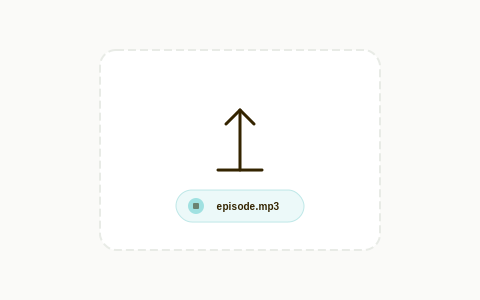
Download the audio and upload it
Open your notebook in a web browser, open the Audio Overview in the Studio panel and select Download. Then upload the file to Recast, which transcribes it for you.
- MP3, WAV and M4A files all work
- No Audio Overview yet? See how to create a NotebookLM podcast
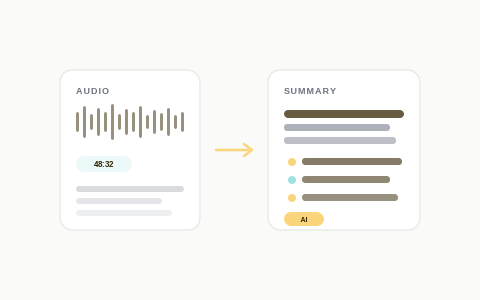
Add your branding and check the captions
Pick one of the audiogram templates and make it yours.
- Set your logo, fonts, colors and waveform
- Add a cover image, a title or B-roll
- Correct any name or term the AI hosts took from your documents
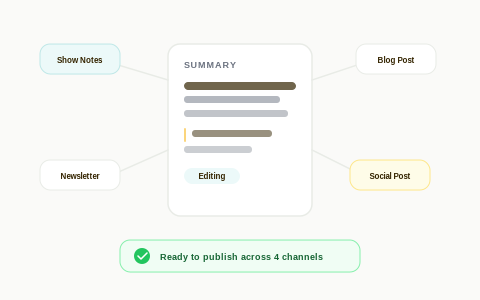
Export the full video and the clips
Export the whole conversation as an MP4, or highlight a passage in the transcript to make a short clip.
- Let AI suggest the moments worth posting
- Export in 16:9, 1:1 or 9:16
- Use the same transcript for show notes or a blog draft
A video people recognize as yours
Every Audio Overview uses the same kind of AI hosts, so what people see is what sets yours apart. Put your logo, fonts and colors on it, and a series of them looks like a show you made.
Templates and brand styling
Start from a template, then set the background, logo, fonts, colors and waveform. Add images, shapes and a progress bar, and reuse the look for the next one.
Captions you can correct
AI hosts talk about product names, people and technical terms from your documents, and those are the words a transcript is most likely to get wrong. Fix them once, before anyone sees the video.
Automatic captions with full control
We transcribe the audio in 20+ languages and add captions. Edit any word, then set the font, size, position and animation.
Short clips of the best moments
An Audio Overview often takes a while to reach its best point. Post that point on its own, and let it lead people to the full conversation.
AI clip suggestions and transcript editing
AI suggests moments from the transcript. Trim each one by highlighting text, and remove filler words and long pauses.
From a report to a week of posts
NotebookLM turns a report, a guide or a piece of research into something people can listen to. The same audio can become a video for YouTube, clips for LinkedIn and the copy that goes with them.
Video and written content together
From one upload you also get a summary, show notes, a blog draft and social posts, ready for you to edit.
Your own video or a NotebookLM Video Overview?
NotebookLM can make video too. Here is when each one fits.
Choose a Video Overview when
You want a quick explainer of your sources, with AI-generated visuals, and it does not need to carry your brand.
Choose Recast when
You want your own branding, captions you control, and short clips in the right shape for each channel.
Use both when
You like the Video Overview but need clips from it. Download the video, upload it to Recast and cut captioned clips the same way.
What it costs
Each minute you upload uses 1 credit, so a 15-minute Audio Overview uses 15. Starter is $17 a month for 150 credits, which covers ten of them.
Do more with your audio
Guides and tools for AI-generated audio, podcasts and interviews.
NotebookLM guides
NotebookLM audio to video FAQs
Short answers before you convert your first Audio Overview.
How do I turn a NotebookLM podcast into a video? +
Download the Audio Overview from NotebookLM in a web browser, upload the file to Recast, choose a template, check the captions and export an MP4.
Can I turn the whole Audio Overview into one video? +
Yes. A single export can run up to 15 minutes on Starter and 60 minutes on Professional. You can cut shorter clips from the same upload.
How do I download audio from NotebookLM? +
Open your notebook in a web browser, open the Audio Overview in the Studio panel and select Download. The mobile app keeps Audio Overviews for listening inside the app, so use a browser when you need the file.
Which audio files can I upload? +
MP3, WAV and M4A. You can also upload a video file, including a Video Overview you downloaded from NotebookLM.
Can NotebookLM make the video itself? +
Yes, as a Video Overview with AI-generated visuals. Make your own video from the audio when you want your branding on it, captions you can edit, or short clips for social feeds.
Can I add captions to a NotebookLM podcast? +
Yes. Recast transcribes the audio and adds captions. You can correct any word and change the font, size, position and animation.
Can I post the video straight to YouTube or LinkedIn? +
Yes, on the Professional plan you can post or schedule to YouTube, LinkedIn, Instagram, TikTok, Facebook and X. You can also download the MP4 and upload it yourself.
Is it free to try? +
Yes. The Free Trial gives you 60 credits, one time. Trial exports run up to 1 minute each and carry a watermark, and paid plans remove it.
Does this work with Gemini Notebook? +
Yes. Gemini Notebook is the new name for NotebookLM. If you can download the audio, you can upload it to Recast.
Is Recast connected to Google or NotebookLM? +
No. Recast is a separate product that works with the audio and video files you download.
Your content is ready. Are you?
Join thousands of marketers turning long videos into daily growth.